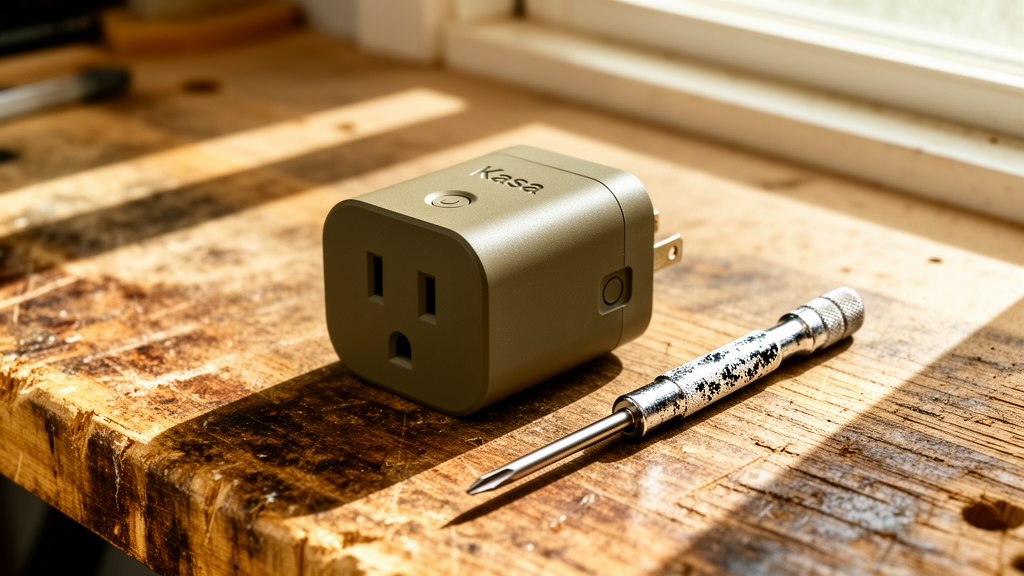
Kasa Smart Plug Unresponsive? Here is the Permanent Fix
Estimated reading time: 8 minutes.
- Check the physical switch: Ensure the manual power button on the side of the plug hasn’t been accidentally toggled off.
- Verify power delivery: Plug a standard lamp into the same outlet to confirm the wall socket itself is providing electricity.
- Check the LED status: A solid red or blinking amber light indicates a specific network handshake failure.
- Power cycle: Unplug the device for 30 seconds, then plug it back in to force a fresh boot sequence.
Table of Contents
- Why Your Kasa Smart Plug Unresponsive Error Occurs
- Step-by-Step Troubleshooting
- Kasa LED Status Reference Table
- Recommended Video Fix
- Frequently Asked Questions
You bought a Kasa smart plug to simplify your life, not to spend your evening wrestling with connectivity issues. When your Kasa smart plug unresponsive status appears in the app, it usually means the device has lost its handshake with your local network or the TP-Link cloud servers. This isn’t always a sign of a dead unit; more often, it is a symptom of a congested 2.4GHz frequency or a firmware hang that requires a manual intervention.
As a technician, I see this daily. Smart plugs are low-power IoT devices with minimal onboard memory. When they encounter a router update or a minor power surge, they can get stuck in a “zombie” state where they are powered on but unable to communicate. This guide will walk you through the technical steps to restore your device to full functionality.
Why Your Kasa Smart Plug Unresponsive Error Occurs
To fix the problem, you need to understand the architecture. Kasa plugs operate exclusively on the 2.4GHz Wi-Fi band. Unlike your phone or laptop, which can hop between 2.4GHz and 5GHz, these plugs are locked to the lower frequency. If your router uses “Band Steering”—a feature that forces devices to 5GHz—your plug will frequently drop off the network because it cannot “see” the 5GHz signal, leading to the dreaded unresponsive state.
Furthermore, IoT devices are susceptible to IP address conflicts. If your router’s DHCP lease expires and it fails to reassign the same IP to the plug, the Kasa app will lose the path to the device. We also see issues with firmware corruption. If a Kasa plug loses power during an over-the-air (OTA) update, the internal flash memory can become partially corrupted, requiring a hard factory reset to clear the cache. For more context on how wireless standards impact home devices, check out this guide on modern Wi-Fi standards.
Step-by-Step Troubleshooting
1. The Power Cycle and Outlet Test
Before diving into network settings, rule out the hardware. Unplug the Kasa device and wait at least 30 seconds. This allows the capacitors to fully discharge, clearing the volatile memory. While it is unplugged, test the wall outlet with a “dumb” device like a lamp or a phone charger. If the outlet is dead, you have a tripped GFCI breaker, not a smart plug issue. If the outlet works, plug the Kasa unit back in and wait two minutes for the boot sequence to complete.
2. Addressing the 2.4GHz Wi-Fi Congestion
If the plug is still unresponsive, your router might be the bottleneck. Many modern mesh systems combine 2.4GHz and 5GHz into a single SSID. This confuses older IoT hardware. Log into your router’s admin panel and check if you can create a “Guest Network” that is strictly 2.4GHz. Move your Kasa plug to this network. This isolates the device from high-bandwidth traffic and prevents the router from trying to force it onto the 5GHz band.
Technician’s Pro-Tip: If you have a large home, ensure your Kasa plug isn’t located in a “dead zone.” Even if your phone shows one bar of Wi-Fi, the Kasa plug’s internal antenna is significantly weaker. If the signal strength (RSSI) is worse than -70 dBm, the device will constantly drop connection.
3. The Factory Reset Procedure
If the device remains unresponsive, you must perform a hard factory reset. This wipes all saved network credentials and returns the plug to its out-of-the-box state. Locate the reset button on the side of the plug. With the device powered on, press and hold the button for 10 to 15 seconds. The LED should begin flashing amber and green. Once it does, open the Kasa app, delete the old “unresponsive” device entry, and re-add it as a new device.
If you are looking to expand your smart home ecosystem beyond plugs, you can explore our comprehensive smart security camera reviews to ensure your network can handle additional devices.
Kasa LED Status Reference Table
| LED Pattern | Meaning | Action Required |
|---|---|---|
| Solid Amber | Booting up | Wait 60 seconds |
| Blinking Amber/Green | Ready for setup | Open Kasa App |
| Blinking Red | Disconnected from Wi-Fi | Check router/reboot |
| Solid Red | No internet access | Check ISP/Modem |
Recommended Video Fix
Frequently Asked Questions
Why does my Kasa plug keep going offline?
Frequent disconnects are usually caused by signal interference or IP address lease issues. Ensure your router is not set to a crowded Wi-Fi channel (use channels 1, 6, or 11) and consider assigning a Static IP to the plug via your router’s DHCP reservation settings.
Can I use a Kasa plug on a 5GHz network?
No. Kasa smart plugs are hardware-limited to 2.4GHz. They physically lack the radio components to connect to 5GHz networks. For more technical details on radio frequency limitations, refer to iFixit’s hardware teardown resources.
Is my Kasa plug broken if it won’t reset?
If you have held the reset button for 20 seconds and the LED does not change, the internal firmware or the physical button mechanism has likely failed. At this point, the device is considered a hardware failure and should be replaced.
Conclusion
Dealing with a Kasa smart plug unresponsive error is rarely a permanent hardware failure. By isolating the device on a 2.4GHz network, performing a proper power cycle, and executing a factory reset when necessary, you can resolve 99% of connectivity issues. If you have followed these steps and the device still refuses to connect, it is time to contact TP-Link support for a warranty claim, as the internal Wi-Fi radio may have reached its end of life.
Related Topics: Kasa, Smart Plug, Troubleshooting