Smart Switch Not Working? A Master Technician’s Guide to Permanent Fixes
Estimated reading time: 12 minutes.
The 2-Minute Quick Check:
- Check the Breaker: Ensure the circuit breaker hasn’t tripped. A smart switch requires constant power to maintain its Wi-Fi connection.
- Toggle the Physical Switch: If the physical button doesn’t trigger the light, the issue is likely a wiring fault or a blown internal relay, not a software glitch.
- Router Status: Check if other IoT devices are offline. If your entire network is down, the switch is fine; your gateway is the problem.
- LED Indicator: Look for a blinking light on the switch faceplate. A blinking red or amber light usually indicates a loss of network handshake.
Table of Contents
- Smart Switch Not Working? A Master Technician’s Guide to Permanent Fixes
- The 2-Minute Quick Check:
- Root Causes: Why Your Smart Switch Fails
- Step-by-Step Troubleshooting
- Recommended Video Fix
- Frequently Asked Questions
- Conclusion
You walk into a room, tap the wall plate, and nothing happens. The smart light stays dark, or worse, it’s stuck in the “on” position. When you have a smart switch not working, it disrupts the entire flow of your home automation ecosystem. Most homeowners assume the device is dead, but in my years of field experience, 90% of these failures are caused by network congestion, loose neutral wires, or firmware desynchronization.
This guide cuts through the noise. We aren’t going to suggest “turning it off and on again” as a final solution. We are going to diagnose the electrical and digital health of your switch to ensure it stays connected for the long haul.
Root Causes: Why Your Smart Switch Fails
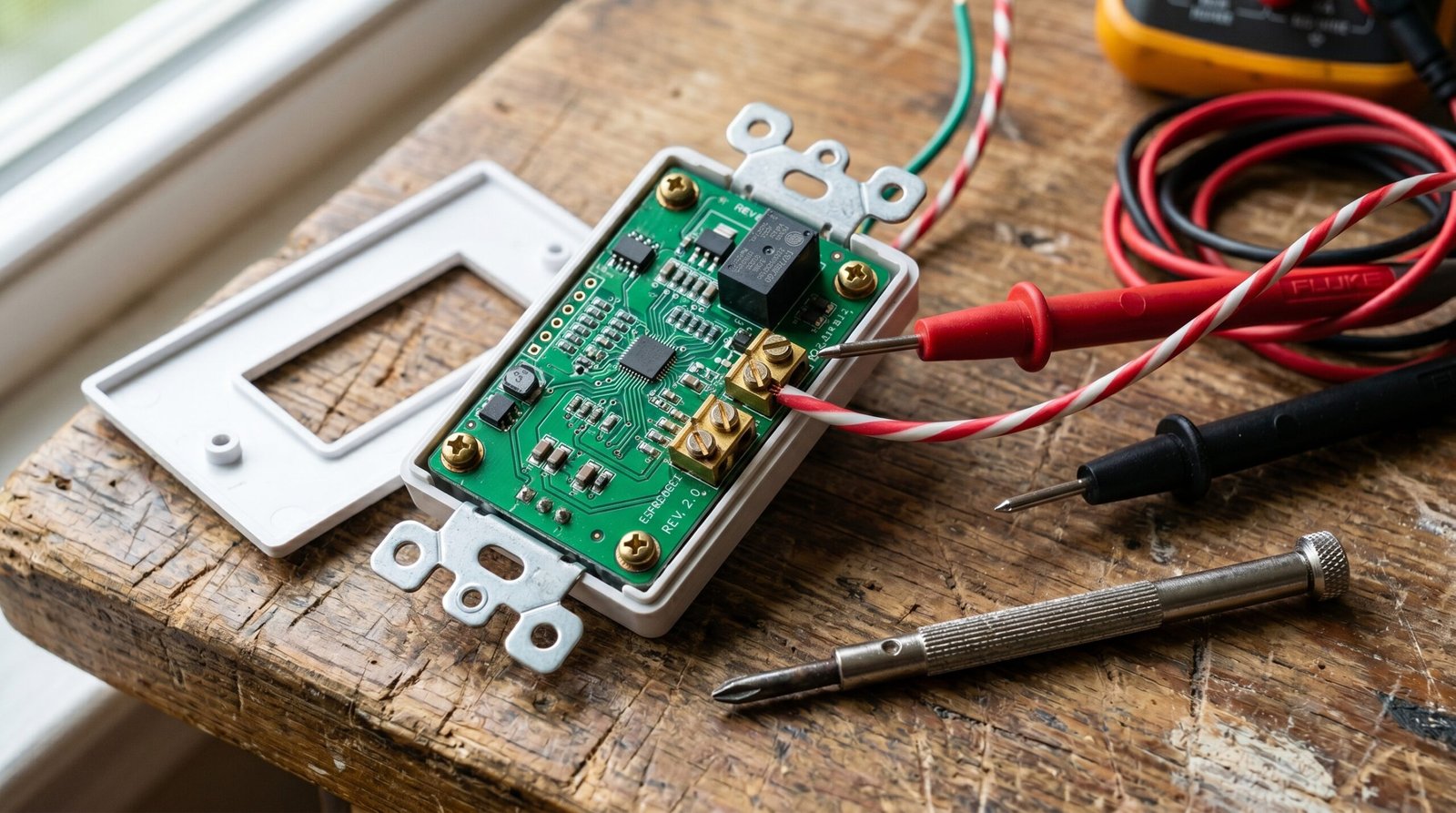
To fix the problem, you must understand the architecture. A smart switch is essentially a computer that sits between your mains power and your light fixture. It requires three things to function: a stable 120V AC supply, a solid neutral wire connection, and a consistent 2.4GHz Wi-Fi signal.
Hardware failure often stems from “inrush current.” When you turn on LED bulbs, they draw a massive spike of power for a millisecond. If your switch is rated for a lower wattage than your fixture pulls, the internal relay contacts will weld shut or burn out. On the software side, the most common culprit is the Wi-Fi frequency conflict. Smart switches almost exclusively operate on the 2.4GHz band. If your router is steering devices to 5GHz or if your channel is overcrowded by neighbors, the switch will drop its handshake with the cloud server.
Step-by-Step Troubleshooting
1. The Power Cycle and Relay Reset
Before pulling the switch out of the wall, perform a hard power cycle. Locate the small “restart” button on the faceplate or, if unavailable, flip the circuit breaker for that specific room. Leave it off for 60 seconds. This clears the volatile memory (RAM) of the switch’s internal processor.
Technician’s Pro-Tip: If your switch has a physical air-gap tab at the bottom, pull it out. This physically disconnects power from the load, forcing a hard reboot of the internal microcontroller without needing to touch your main breaker panel.
2. Inspecting the Wiring Integrity
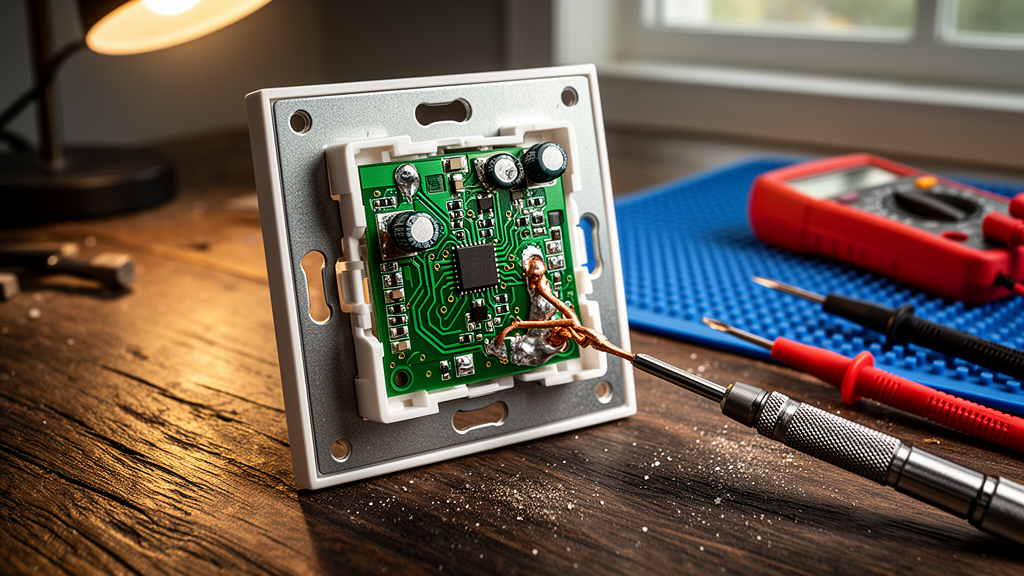
If the switch has power but won’t toggle, you likely have a loose connection. Turn off the main power at the breaker. Remove the wall plate and pull the switch out. Check the wire nuts. A loose neutral wire is the #1 cause of intermittent connectivity. If the neutral wire is loose, the switch will lose its “brain” power while the light might still flicker or stay off.
3. Addressing Network Handshake Issues
If the switch is powered but shows as “Offline” in your app, the issue is the network. Ensure your 2.4GHz band is active. If you recently upgraded your router, the switch may be trying to connect to an old SSID. You may need to perform a factory reset on the switch and re-pair it. For more complex network issues, check our smart home connectivity hub for advanced router configuration tips.
4. Firmware and Cloud Sync
Sometimes, a smart switch not working is simply a result of a failed firmware update. If the switch is stuck in a boot loop (flashing lights), it likely lost power during an OTA (Over-the-Air) update. You will need to use the manufacturer’s app to force a factory reset. If the app cannot see the device, the firmware is corrupted, and the unit may need a hardware replacement.
| Symptom | Likely Cause | Repair Difficulty |
|---|---|---|
| No LED light on switch | No power / Tripped breaker | Low |
| Switch works, but app says “Offline” | Wi-Fi interference / SSID change | Medium |
| Switch clicks but light doesn’t turn on | Blown internal relay / Wiring fault | High |
| Switch is hot to the touch | Overloaded circuit / Loose wire | Critical (Stop use) |
Recommended Video Fix
Frequently Asked Questions
Why does my smart switch work manually but not via the app?
This confirms the electrical wiring is correct, but the Wi-Fi radio inside the switch has lost its connection to your router. Check your router’s client list to see if the device is still assigned an IP address. If it isn’t, re-pair the device to your network.
Can I use a smart switch with non-dimmable LED bulbs?
Yes, but only if the switch is a standard “on/off” model. If you are using a smart dimmer switch with non-dimmable bulbs, you will cause the bulbs to flicker, buzz, and eventually fail. Always verify your hardware compatibility before installation.
How long should a smart switch last?
A high-quality smart switch should last between 5 to 10 years. If yours is failing after less than two years, you likely have a voltage spike issue or an overloaded circuit that is stressing the internal relay components.
Conclusion
Dealing with a smart switch not working is a common rite of passage for any smart home enthusiast. By methodically checking your power supply, verifying your neutral wire connections, and ensuring your 2.4GHz network is stable, you can resolve almost any issue. If you have performed these steps and the device remains unresponsive, it is time to retire the unit and upgrade to a more robust model. Remember, a stable smart home starts with solid electrical foundations.
Related Topics: Smart Switch, Troubleshooting, Home Automation