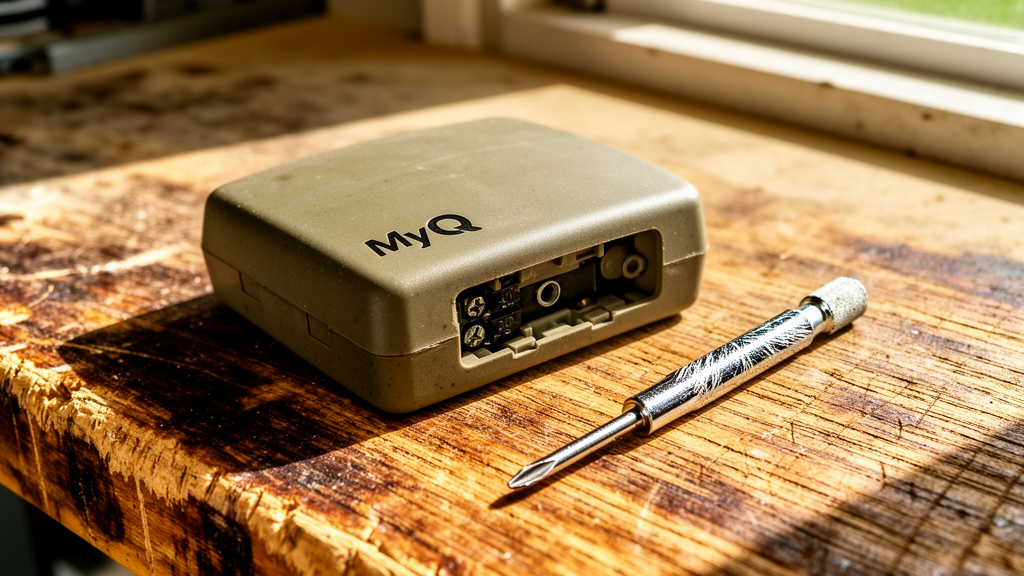
MyQ Garage Door Opener Offline: The Definitive Troubleshooting Guide
Estimated reading time: 8 minutes.
- Power Cycle: Unplug your garage door opener from the ceiling outlet, wait 30 seconds, and plug it back in.
- Router Reboot: Power cycle your Wi-Fi router to clear potential IP address conflicts.
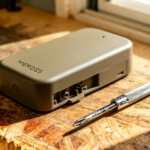
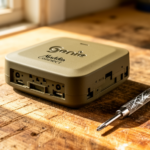
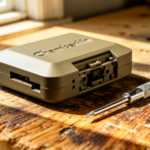
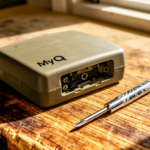
- Check the LED: Look at the Wi-Fi indicator light on your MyQ hub or opener. Is it solid green, blinking blue, or solid blue?
- Verify Wi-Fi: Ensure your smartphone is connected to the same 2.4GHz network the MyQ device uses.
Table of Contents
- Root Causes: Why Your MyQ Connection Fails
- Step-by-Step Troubleshooting
- Diagnostic Data: MyQ LED Error Codes
- Recommended Video Fix
- Frequently Asked Questions
There is nothing more frustrating than arriving home after a long day, tapping your phone, and realizing your myq garage door opener offline status is preventing you from entering your own garage. You expect smart home technology to be seamless, but when the connection drops, it turns into a manual inconvenience. As a technician, I see this daily. The issue is rarely a “broken” device; it is almost always a communication breakdown between your router, the MyQ hub, and the cloud servers.
Root Causes: Why Your MyQ Connection Fails
To fix this, you need to understand the architecture of your smart garage. MyQ devices operate exclusively on the 2.4GHz Wi-Fi band. Unlike your laptop or streaming devices that thrive on the high-speed 5GHz band, your garage opener requires the longer range and better wall-penetration capabilities of 2.4GHz. If your router is configured to “band steer” or if you have recently upgraded your network hardware, the MyQ device may be struggling to maintain a handshake with the gateway.
Furthermore, firmware updates can occasionally hang during installation, leaving the device in a “zombie” state where it has power but no network identity. We also see frequent issues with IP address exhaustion. If your router has a short DHCP lease time, it may be dropping the connection to the MyQ device to make room for other household traffic. For a deeper understanding of how these wireless standards function in a home environment, refer to this guide on optimizing your home Wi-Fi network.
Step-by-Step Troubleshooting for MyQ Garage Door Opener Offline
Follow these steps in order. Do not skip the power cycle, as it resolves 70% of connectivity issues.
1. The Hard Reset and Power Cycle
Before diving into app settings, force the hardware to re-establish its connection. Unplug the opener from the ceiling. While it is unplugged, reboot your router. Once the router is fully back online and broadcasting, plug the garage door opener back in. Wait five minutes for the device to boot up and attempt to re-associate with your network.
2. Analyze the LED Status
The LED light on your MyQ hub or wall control is your primary diagnostic tool. If it is blinking blue, it is in Wi-Fi setup mode. If it is solid blue, it is connected to the internet but not the MyQ server. If it is blinking green, it is attempting to connect to the router. If you see no light at all, check your power source or the internal fuse of the opener.
3. Re-pairing the Device
If the device remains offline, you must clear the existing network settings. Press and hold the “Settings” button (or the Wi-Fi button) on your MyQ hub until the LED light turns blue. This wipes the old network credentials. Open the MyQ app on your phone, select “Add New Device,” and follow the prompts to re-provision the opener with your Wi-Fi password.
Technician’s Pro-Tip: If you have a mesh Wi-Fi system, disable the 5GHz band temporarily during the setup process. Many modern routers combine 2.4GHz and 5GHz under one SSID, which confuses the MyQ hardware during the initial handshake. Once the device is connected, you can re-enable the 5GHz band.
4. Check for Signal Interference
Garages are notorious for signal dead zones. If your router is on the opposite side of the house, the signal may be too weak to maintain a stable connection. Consider installing a Wi-Fi range extender in the garage. For more complex smart home setups, you might also want to explore our comprehensive smart security integration guides to ensure your entire ecosystem is communicating correctly.
Diagnostic Data: MyQ LED Error Codes
| LED Color/Pattern | Meaning | Recommended Action |
|---|---|---|
| Solid Green | Connected to Internet | System is healthy. |
| Blinking Blue | Ready for Wi-Fi Setup | Use the MyQ app to configure. |
| Blinking Green | Connecting to Router | Check Wi-Fi password/signal strength. |
| Solid Blue | Connected to Router, No Internet | Check your ISP or router firewall settings. |
Recommended Video Fix
Frequently Asked Questions
Why does my MyQ garage door opener offline status happen every few weeks?
This is usually caused by your router’s DHCP lease expiring. Log into your router’s admin panel and assign a “Static IP” or “DHCP Reservation” to the MAC address of your MyQ device. This ensures the router always recognizes the device.
Do I need to replace the battery in my MyQ hub?
Most MyQ hubs are hardwired. However, if you are using a battery-operated sensor on the door itself, a low battery can cause intermittent reporting issues. Always check the sensor battery if the app shows the door status as “unknown.” For more information on battery maintenance, see this battery maintenance guide.
Will a firmware update fix my connection issues?
Yes, but only if the device can connect long enough to download it. If the device is permanently offline, you must perform the manual re-pairing process described in step 3 to force the device to check for updates.
If you have followed these steps and your myq garage door opener offline error persists, you may be dealing with a failing Wi-Fi radio module inside the opener. In such cases, contact the manufacturer for a warranty claim, as internal hardware failure is not a user-serviceable issue.
Related Topics: MyQ, Garage Door Opener, Smart Home Troubleshooting