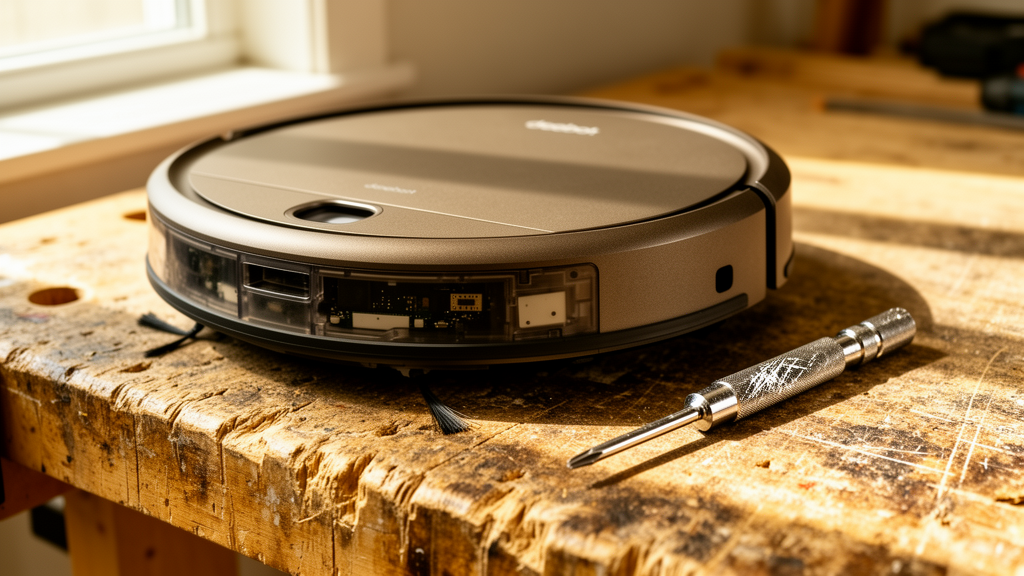
Deebot Offline in App: The Definitive Troubleshooting Guide for Homeowners
Estimated reading time: 8 minutes.
- Power Cycle the Robot: Flip the physical power switch on the side or under the bumper to “Off,” wait 30 seconds, and flip it back to “On.”
- Check Your Router: Ensure your 2.4GHz Wi-Fi band is active. Deebots cannot connect to 5GHz networks.
- Verify App Status: Force-close the ECOVACS Home app and reopen it to refresh the server handshake.
- Inspect the Dock: Ensure the charging pins are clean and the dock is plugged into a live wall outlet.
Table of Contents
- Root Causes: Why Your Deebot Loses Connection
- Step-by-Step Troubleshooting
- Recommended Video Fix
- Frequently Asked Questions
You walk into your living room expecting a clean floor, only to open your phone and see the dreaded “Device Offline” status. It is a common point of failure in modern smart homes. When your deebot offline in app error persists, it usually points to a breakdown in the handshake between your local network, the ECOVACS cloud servers, and the robot’s internal Wi-Fi module.
As a technician, I see this daily. It is rarely a “broken” robot. It is almost always a network configuration mismatch or a firmware hang. This guide will walk you through the technical reality of why this happens and how to restore your connection permanently.
Root Causes: Why Your Deebot Loses Connection
To fix the issue, you must understand the architecture. Your Deebot is an IoT (Internet of Things) device that maintains a persistent connection to the ECOVACS cloud. When that connection drops, the app loses its ability to send commands or receive telemetry data.
The most frequent culprit is the 2.4GHz vs. 5GHz frequency conflict. Most home routers now use “Band Steering,” which automatically pushes devices to the faster 5GHz band. However, the Wi-Fi chipsets in most robot vacuums are strictly 2.4GHz. If your router forces the Deebot onto a 5GHz channel, the connection will drop immediately. For a deeper understanding of how these wireless standards function, refer to this guide on Wi-Fi router optimization.
Another common cause is IP address exhaustion or DHCP lease expiration. If your router has too many devices connected, it may fail to renew the IP address for your vacuum, effectively kicking it off the network. If you are also having trouble with other smart home devices, you might want to check our comprehensive smart home security troubleshooting hub for broader network stability tips.
Step-by-Step Troubleshooting
1. The Hard Reset (Network Refresh)
Before changing router settings, perform a hard reset on the robot. This clears the temporary cache in the robot’s Wi-Fi module.
- Remove the robot from the charging dock.
- Turn the power switch to the “Off” position.
- Wait for at least 60 seconds to allow the capacitors to discharge.
- Turn the power back on and wait for the startup chime.
Technician’s Pro-Tip: If the robot fails to reconnect after a hard reset, perform a “Network Reset” by holding the reset button (usually located near the Wi-Fi indicator light) for 5 seconds until the robot announces “Resetting network settings.” You will need to re-add the device in the app as if it were new.
2. Router Frequency Isolation
If the robot connects but drops offline frequently, your router is likely trying to steer it to 5GHz. Log into your router’s admin panel (usually 192.168.1.1 or 192.168.0.1) and create a dedicated 2.4GHz SSID (network name) specifically for your smart home devices. This prevents the “band steering” conflict entirely.
3. Battery Health and Docking
If the battery is critically low, the robot may shut down its Wi-Fi radio to conserve power for the return-to-dock sequence. If the charging pins are oxidized or covered in dust, the robot won’t charge, leading to a dead battery and an offline status. Use a dry microfiber cloth to clean the metal contacts on both the dock and the robot. For more information on how battery degradation affects device performance, see this technical overview on battery maintenance.
| Indicator Light Status | Meaning | Required Action |
|---|---|---|
| Solid White | Connected to Wi-Fi | None |
| Flashing White | Disconnected / Pairing Mode | Re-pair via App |
| Solid Red | Hardware Error | Check Bumper/Sensors |
| No Light | Power Off / Battery Dead | Charge or Toggle Switch |
Recommended Video Fix
Frequently Asked Questions
Why does my Deebot go offline every time I leave the house?
This is often caused by “Smart Wi-Fi” features on your phone. If your phone switches from Wi-Fi to cellular data, the app may lose its local handshake with the robot. Ensure your phone is on the same 2.4GHz network as the robot when troubleshooting.
Does a firmware update fix the “deebot offline in app” issue?
Yes, but you can only update firmware if the robot is online. If you cannot get it online, you must perform a factory reset to force the robot to re-establish a clean connection to the ECOVACS servers.
Can I use a Wi-Fi extender to fix the connection?
Be careful. Many cheap extenders create a new network name or cause latency issues. If you use an extender, ensure it is a “Mesh” system that uses the same SSID as your main router to prevent the robot from getting confused when moving between rooms.
Conclusion
Resolving a deebot offline in app error is rarely about replacing hardware. It is about managing the environment in which your robot operates. By isolating your 2.4GHz network, ensuring your charging contacts are clean, and performing a proper network reset, you can restore your robot’s functionality. If these steps fail, the issue may lie with the internal Wi-Fi antenna, which would require a professional hardware inspection.
Related Topics: Deebot, Robot Vacuum, Wi-Fi Troubleshooting