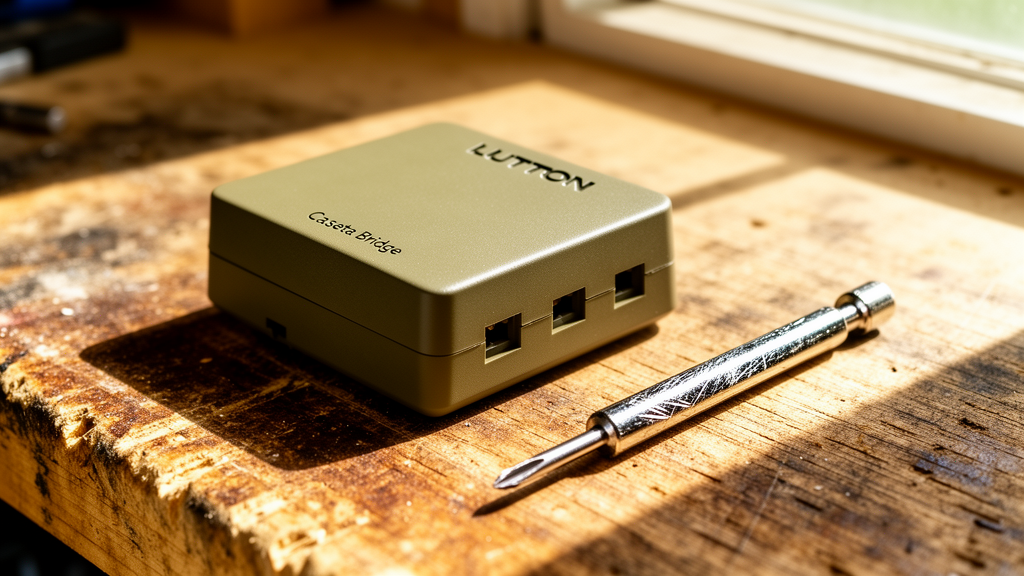
Lutron Caseta Bridge Not Responding: The Definitive Troubleshooting Guide
Estimated reading time: 12 minutes.
- Check the Ethernet connection: Ensure the cable is clicked firmly into both the Lutron Smart Bridge and your router. Swap the cable if you have a spare.
- Verify power status: Confirm the power adapter is plugged into a wall outlet, not a switched outlet that might be turned off.
- Router reboot: Power cycle your router. Many “bridge not responding” errors are actually DNS or DHCP lease issues originating from the router, not the bridge itself.
- LED status: Look at the bridge. A solid white light is normal. A blinking light or no light indicates a specific hardware or network failure.
Table of Contents
- Root Causes: Why Your Lutron Caseta Bridge Is Failing
- Step-by-Step Troubleshooting
- Lutron Bridge LED Status Codes
- Recommended Video Fix
- Frequently Asked Questions
You walk into your living room, tap the Lutron app to dim the lights for a movie, and get the dreaded “Bridge Not Responding” error. It is a frustrating bottleneck that renders your entire smart lighting ecosystem useless. As a technician, I see this daily. The Lutron Caseta system is arguably the most reliable lighting platform on the market, but it is not immune to network congestion or firmware hiccups. This guide cuts through the noise to get your system back online.
Root Causes: Why Your Lutron Caseta Bridge Is Failing
When your Lutron Caseta bridge not responding error appears, it is rarely a sign that the hardware has died. Instead, it is usually a communication breakdown between the bridge and your local area network (LAN) or the Lutron cloud servers.
The bridge operates on a proprietary Clear Connect RF technology (434 MHz), which is excellent for avoiding interference from your 2.4GHz Wi-Fi devices. However, the bridge itself must communicate with your router via Ethernet. If your router’s DHCP table is cluttered, or if there is an IP address conflict, the bridge will lose its “handshake” with the Lutron app. Furthermore, firmware updates can occasionally hang if the bridge loses internet connectivity mid-process, leading to a “bricked” state that requires a specific power-cycling sequence to resolve.
Understanding your network infrastructure is key. If you are experiencing broader issues with your smart home, you might also want to check our smart lock troubleshooting guides to see if other devices are dropping off your network, which would indicate a router-level problem rather than a Lutron-specific one.
Step-by-Step Troubleshooting
1. The Hard Power Cycle
Do not just unplug the bridge for five seconds. Capacitors inside the power supply can hold a charge longer than that. Unplug the power cable from the back of the bridge and leave it disconnected for at least 60 seconds. While it is unplugged, reboot your router. Once the router is fully back online and broadcasting Wi-Fi, plug the bridge back in. Wait five minutes for the bridge to re-establish its connection to the Lutron cloud.
2. Inspecting the Ethernet Path
The bridge requires a stable wired connection. If you are using a network switch between the bridge and the router, bypass the switch and plug the bridge directly into the router. This eliminates the switch as a point of failure. According to iFixit’s router repair guides, network port degradation is a common cause of intermittent connectivity. If the port on your router is loose or oxidized, move the Ethernet cable to a different LAN port.
Technician’s Pro-Tip: If your bridge LED is flashing red, it indicates a loss of internet connectivity. If it is flashing green, it is searching for a network. If it is solid white but the app says “not responding,” the issue is almost certainly a local network routing or DNS issue.
3. IP Address Reservation
If the bridge works for a few days and then stops, your router is likely assigning it a new IP address every time the DHCP lease expires. Log into your router’s admin panel and find the “DHCP Reservation” or “Static IP” settings. Assign a permanent IP address to the MAC address printed on the bottom of your Lutron bridge. This ensures the app always knows exactly where to find the bridge on your network.
4. Factory Reset (The Last Resort)
If you have exhausted all network troubleshooting, you may need to reset the bridge. Warning: This will erase your device pairings and scenes. To reset, hold the button on the back of the bridge until the LED starts flashing. Release, then press and hold again until the LED flashes rapidly. This restores the bridge to factory settings. You will need to re-add the bridge in the Lutron app and re-pair your devices.
Lutron Bridge LED Status Codes
| LED Color/Pattern | Meaning | Action Required |
|---|---|---|
| Solid White | Normal Operation | None |
| Flashing Green | Searching for Network | Check Ethernet cable/Router |
| Flashing Red | No Internet Access | Check ISP/Modem connection |
| Solid Red | Hardware Failure | Contact Lutron Support |
For more information on how network standards affect your smart home, refer to CNET’s guide on smart home connectivity to ensure your home network is optimized for IoT traffic.
Recommended Video Fix
Frequently Asked Questions
Why does my Lutron Caseta bridge not responding error happen only at night?
This is often caused by “Wi-Fi channel hopping.” Many routers automatically switch channels to avoid interference. If your router is set to “Auto” for channel selection, it may be causing a momentary drop in network stability that the bridge struggles to recover from. Set your 2.4GHz channel to a fixed channel (1, 6, or 11).
Can I use a Wi-Fi extender to connect my bridge?
It is not recommended. The bridge is designed for a direct, low-latency connection to your main router. If you must use an extender, ensure it has an Ethernet port and that you are using a high-quality Cat6 cable to bridge the gap.
Does the bridge need to be near the lights?
No. The bridge uses Clear Connect RF, which has a range of about 30 feet through walls and ceilings. It does not need to be in the same room as your switches, but it should be centrally located in your home for the best signal coverage.
Related Topics: Lutron Caseta, Smart Bridge, Troubleshooting