How to Restart WiFi Router: The Definitive Troubleshooting Guide for Smart Homes
Estimated reading time: 8 minutes.
The 2-Minute Quick Check:
- Check the Power Source: Ensure the power adapter is seated firmly in both the wall outlet and the router port.
- Verify LED Status: Look for solid red or blinking amber lights, which indicate a handshake failure with your ISP.
- Check for Physical Obstructions: Ensure the router isn’t enclosed in a metal cabinet or behind a large appliance, which causes signal attenuation.
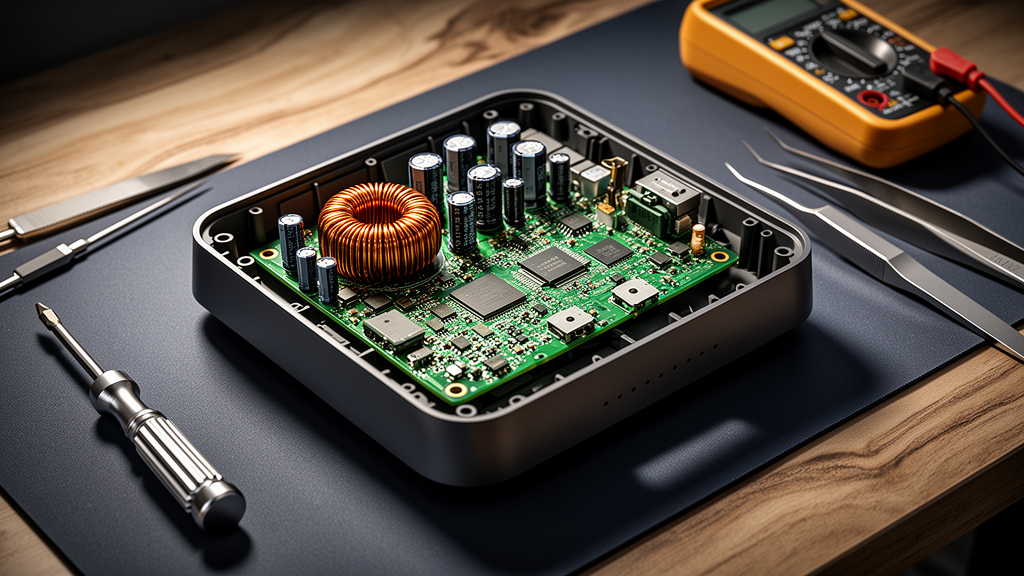
- Perform a Power Cycle: Unplug the power cable for a full 60 seconds to allow the capacitors to discharge completely.
Table of Contents
- How to Restart WiFi Router: The Definitive Troubleshooting Guide for Smart Homes
- Root Causes: Why Your Router Needs a Hard Reset
- How to Restart WiFi Router: The Professional Procedure
- Troubleshooting Matrix: LED Status Indicators
- Advanced Network Maintenance
- Recommended Video Fix
- Frequently Asked Questions
- Conclusion
Your smart home is only as reliable as the network backbone supporting it. When your smart locks, cameras, and thermostats go offline simultaneously, the culprit is rarely the individual devices. It is almost always the gateway. If you are struggling with intermittent connectivity or total network failure, learning how to restart wifi router hardware correctly is the most effective first step in restoring your ecosystem.
Most homeowners treat their router like a “set it and forget it” appliance. In reality, these devices are small, dedicated computers running complex firmware that manages traffic, security protocols, and IP address allocation. Over time, memory leaks and cache buildup can cause the system to hang. This guide will walk you through the technical process of clearing those errors and stabilizing your home network.
Root Causes: Why Your Router Needs a Hard Reset
To understand why your network drops, you have to look at the hardware architecture. Routers utilize RAM to store routing tables and NAT (Network Address Translation) tables. When these tables become bloated or corrupted, the router struggles to map internal IP addresses to external requests. This is often exacerbated by high-density IoT environments where dozens of devices are constantly polling for data.
Furthermore, thermal throttling is a silent killer. If your router is placed in a poorly ventilated area, the CPU will downclock to prevent permanent silicon damage, leading to massive latency spikes. Before you assume your ISP is down, you must rule out local hardware exhaustion. For a deeper look at how wireless standards impact your home, refer to this guide on optimizing Wi-Fi performance.
How to Restart WiFi Router: The Professional Procedure
Do not simply tap the power button. A soft reboot often fails to clear the volatile memory (RAM) where the corrupted processes reside. Follow this sequence to ensure a clean state.
1. The Hard Power Cycle
Unplug the power cable from the back of the router. Do not use the power button on the device if it has one. By physically disconnecting the power, you ensure that the capacitors on the motherboard fully discharge. Wait at least 60 seconds. This duration is non-negotiable; it allows the hardware to reset its internal state machines.
2. The Modem-First Sequence
If you have a separate modem and router, the order of operations is critical. Plug the modem in first and wait for the “Online” or “Internet” light to turn solid. Only after the modem has established a handshake with your ISP should you plug in your router. This ensures the router receives a fresh WAN IP address from the modem.
3. Firmware Verification
Once the network is back up, log into your router’s administrative interface (usually 192.168.1.1 or 192.168.0.1). Check for firmware updates. Manufacturers frequently release patches to address memory leaks and security vulnerabilities. If your router is outdated, it will continue to crash regardless of how many times you restart it. For more complex issues involving your home infrastructure, check our security camera troubleshooting hub to see if your network settings are causing specific device conflicts.
Technician’s Pro-Tip: If you find yourself needing to restart your router more than once a week, your hardware is likely failing or overheating. Consider moving the router to an open, elevated position and ensuring it is not stacked on top of other heat-generating electronics.
Troubleshooting Matrix: LED Status Indicators
| LED Color/Pattern | Meaning | Action Required |
|---|---|---|
| Solid Green/White | Normal Operation | None |
| Blinking Amber | Firmware Update in Progress | Do NOT unplug; wait 10 minutes |
| Solid Red | Hardware Failure/No WAN | Perform hard reset; check ISP status |
| No Lights | No Power | Check outlet and power cable |
Advanced Network Maintenance
If a standard restart doesn’t solve the issue, you may be dealing with channel congestion. In a typical suburban environment, the 2.4GHz spectrum is often saturated by neighbors’ networks, microwaves, and Bluetooth devices. According to industry standards for wireless connectivity, switching to a less crowded channel in your router settings can drastically improve stability for your smart home devices.
Recommended Video Fix
Frequently Asked Questions
Does pressing the reset button on the back of the router fix connectivity issues?
No. The small, recessed “Reset” button usually performs a factory reset, which wipes all your custom settings, including your Wi-Fi name (SSID) and password. Only use this as a last resort if you are prepared to reconfigure your entire network.
Why do my smart devices stay offline even after I restart the router?
Some IoT devices have “sticky” connections. If they don’t automatically reconnect after the router comes back online, you may need to power cycle the individual smart device (e.g., unplug the smart plug or toggle the smart light switch) to force it to re-scan for the network.
How often should I restart my router?
In a healthy network, you should rarely need to restart your router. If you find it necessary to restart it frequently, it is a sign of either a failing power supply, an overheating CPU, or a firmware bug that requires a manufacturer update.
Conclusion
Mastering how to restart wifi router hardware is a fundamental skill for any smart home owner. By following the hard power cycle method and ensuring your firmware is current, you eliminate the most common variables that cause network instability. If these steps fail to resolve your connectivity issues, the problem likely lies with your ISP’s signal delivery or a hardware failure within the router itself. Keep your network clean, your firmware updated, and your router ventilated to ensure your smart home remains responsive and reliable.
Related Topics: WiFi Router, Network Troubleshooting, Smart Home Connectivity